Lighthouse Tech — Official Documentation
Firmware Update (OTA)
Version 1.0 · Published September 30, 2026
On this page
Before you update
- Every version of the TAMI Guide app can update the glasses firmware.
- An update only moves forward: once a firmware version is installed, you cannot go back to an earlier one.
- Glasses are normally delivered with the latest firmware (2.6.3); some units may still have version 2.5.4.
- If the update does not complete correctly, write to support@lighthousetech.ch.
Firmware Update (OTA)
The app supports wireless Over-The-Air (OTA) firmware updates to keep your glasses up to date.
Important: The device must be in maintenance mode before a firmware update can begin. To enter maintenance mode, ensure the arms are connected to a power outlet, then press and hold the button for 10 seconds. The system splits into two distinct units (left and right). The FW Update card on the Device Control page will appear, and the firmware update must be performed on both units.
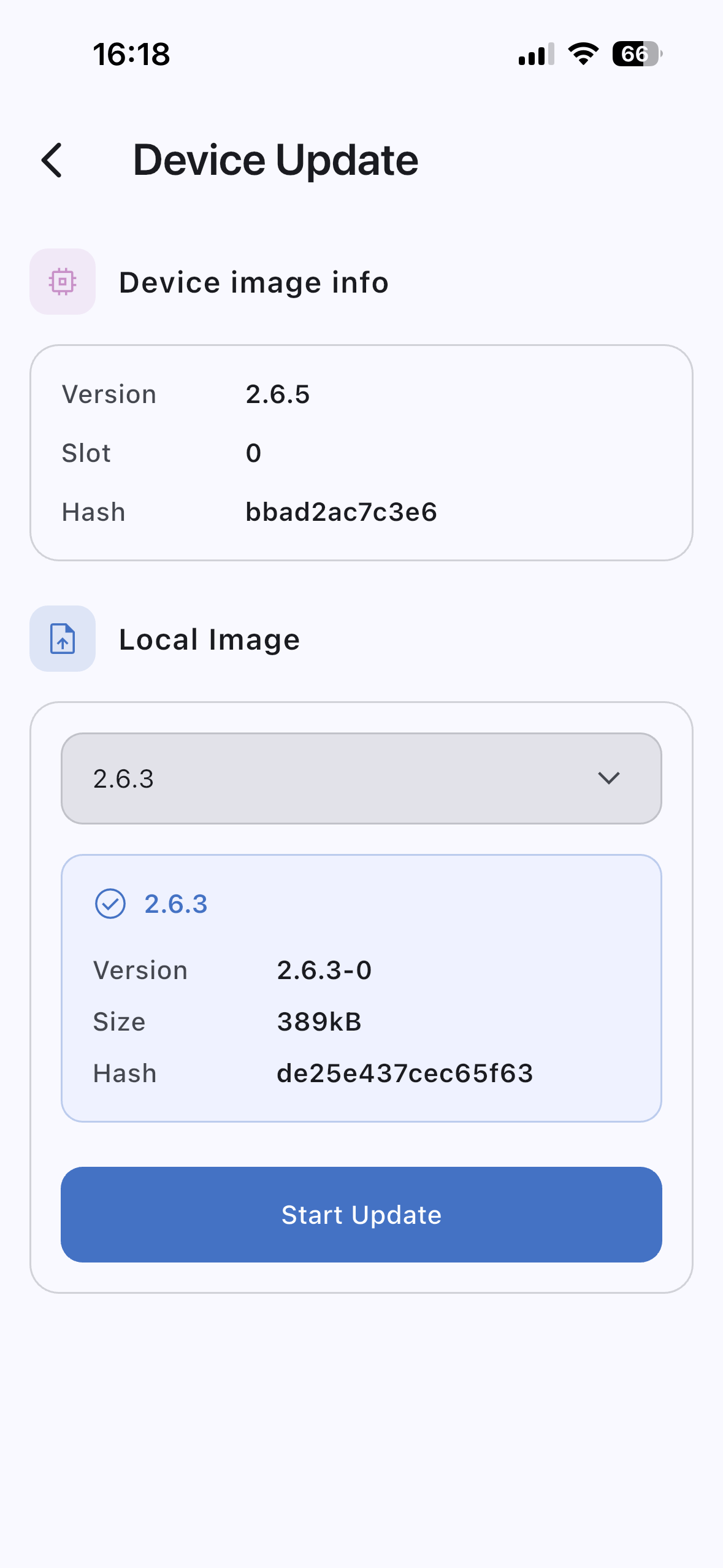
- From the Device Control page, tap FW Update.
- The current firmware version is displayed at the top of the page.
- Tap Select Firmware File, then choose the desired firmware from the dropdown menu and tap Confirm.
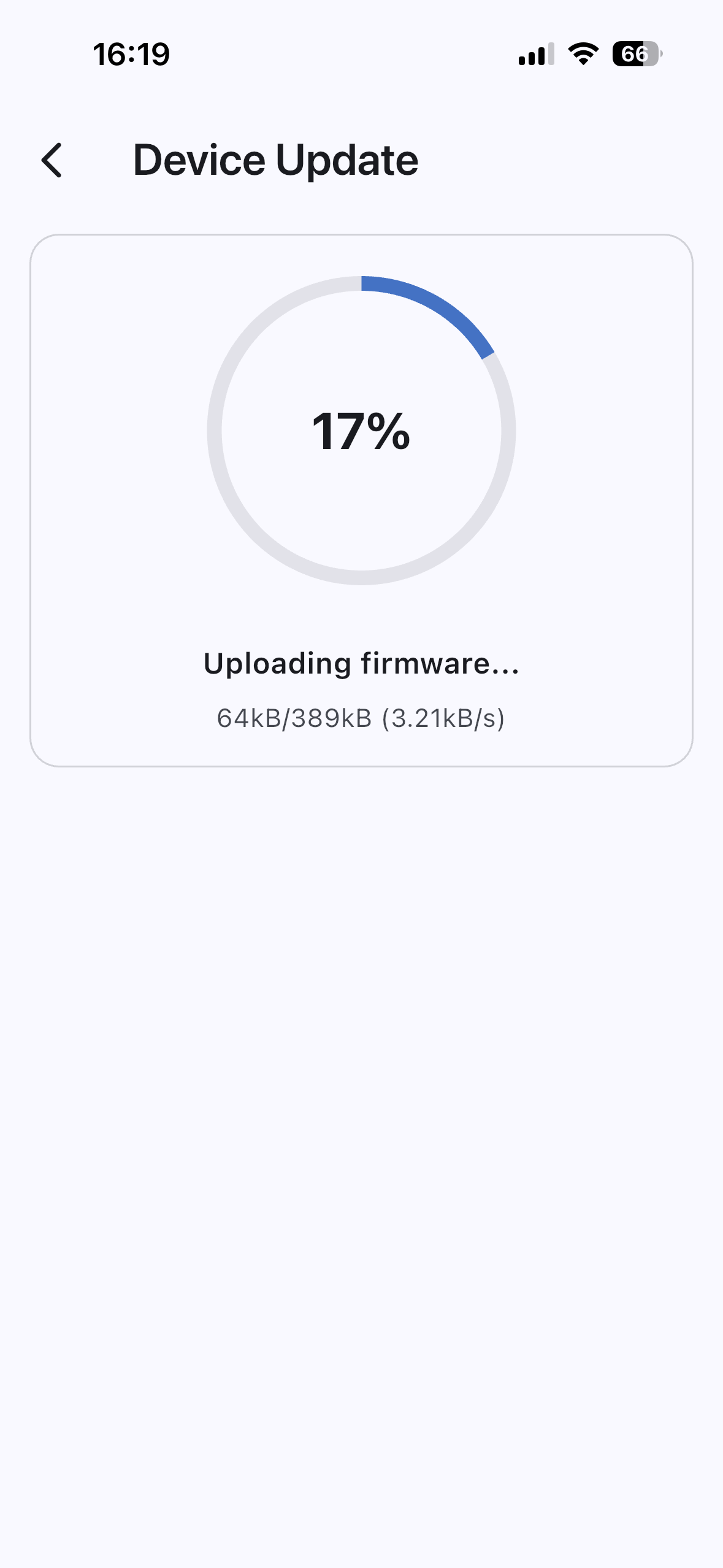
- The upload will begin — a progress bar shows the upload percentage.
- When the upload is complete, the device will automatically reboot.
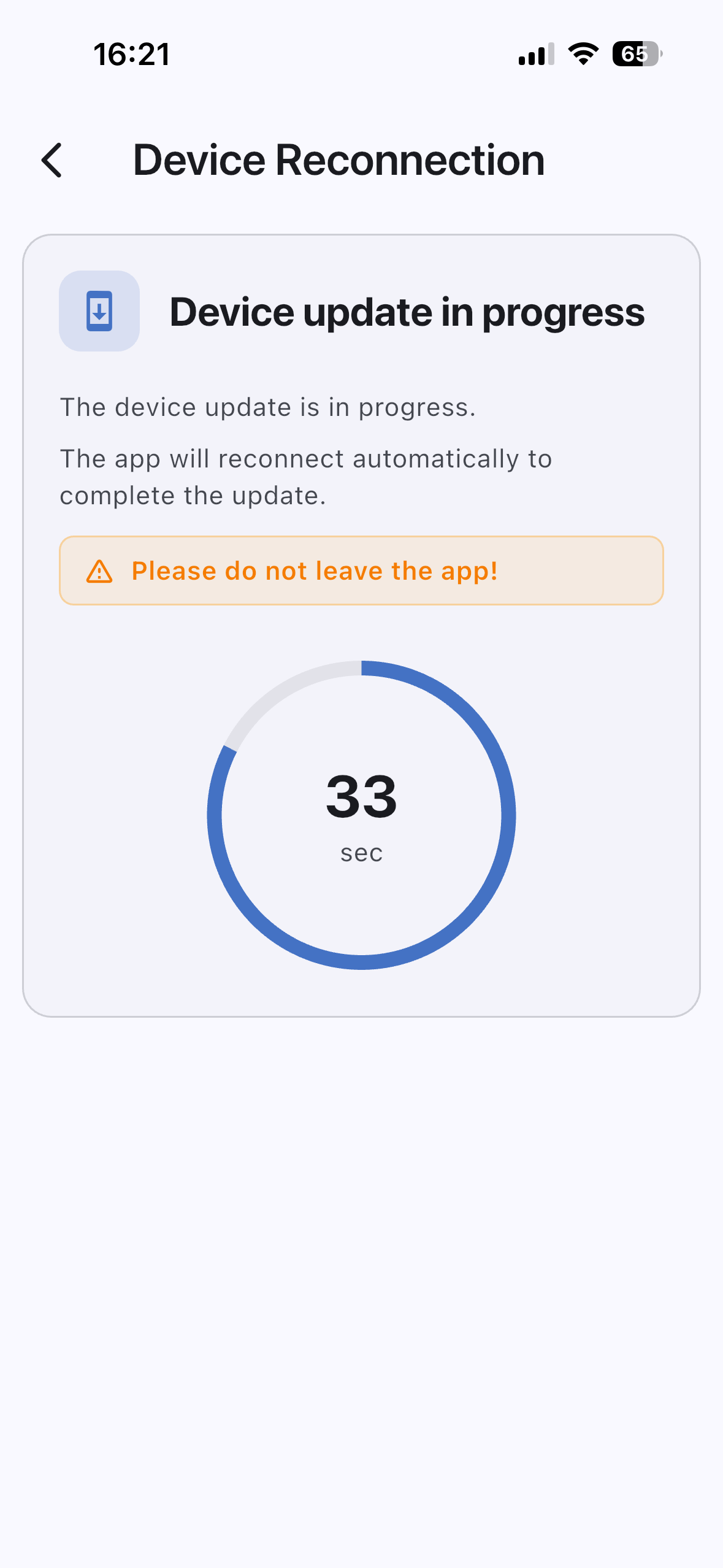
- The app will scan and reconnect to the device within ~40 seconds.
- After reconnection, the app verifies the firmware hash to confirm a successful update.
- Navigate back to the FW Update card on the Device Control page to confirm and finalize the update.
- If the slave unit also needs updating, you will be prompted to proceed with that.
- Exit maintenance mode by pressing and holding the power button for 10 seconds.
Do not close the app or turn off Bluetooth during the update.
The maintenance mode sound
When the glasses enter maintenance mode, they play this sound: